DOCUMENTATION

How to use OpenLumin

A complete guide to getting the most out of your Bible research companion.

01

AskLumin — Instant Bible Q&A

AskLumin is the fastest way to get evidence-based answers to a Bible research question. Create a free account, then visit /askand type your question.

How it works. AskLumin searches all existing OpenLumin courses and scholarly sources — Matthew Henry, John Gill, Michael Heiser, ANE context, historical documents, and more. It assembles an answer with inline citations, not AI opinions.

WHAT YOU GET
A 300–400 word answer with verified and training-assisted citations
Sources listed at the top — know exactly who informed the answer
3 related follow-up questions to explore deeper
A "Create a full course" button to turn any question into a structured study
Denomination-aware. Mention your tradition in the question — e.g. “What does the Assemblies of God teach about divine healing?” — and AskLumin anchors the answer to your denomination's official doctrinal position.
02

Getting started

1
Create an account
Sign up with a name, email, and password (minimum 6 characters). It's free — no credit card required.
2
Verify your email
Check your inbox for a verification link from noreply@hello.openlumin.com. The link expires in 24 hours.
3
Complete onboarding
Choose your study intent (personal, ministry, or academic), Bible familiarity, and preferred study mode. This helps OpenLumin tailor content to your level.
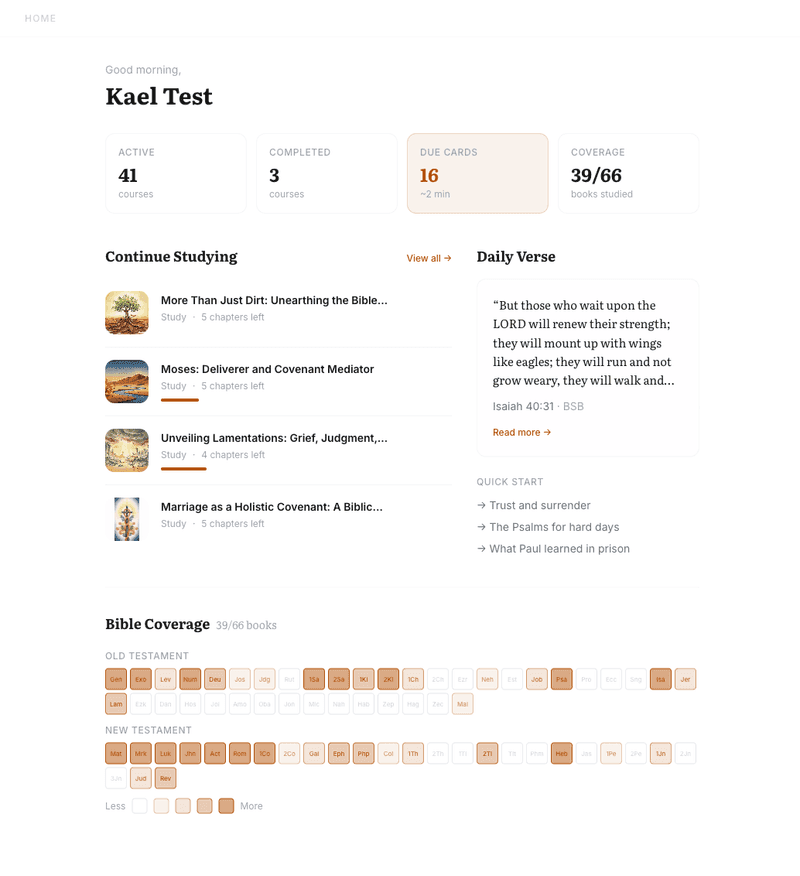
OpenLumin dashboard — stats, courses, daily verse, Bible coverage
03

Learner levels

Your learner level controls the depth and complexity of generated courses. You can change it anytime in Settings.

Explorer
Simple language, one big idea per lesson. Max 2 key terms, no ANE context. Great for new believers or casual study.
BuilderDEFAULT
Cross-references, 3–4 scholars cited, some original language. Ideal for regular Bible students and small-group leaders.
Leader
Original languages with semantic ranges, 6+ scholars, full ANE context, confidence tiers on every claim. For pastors and seminary-level study.
04

Creating a course

Go to Courses → New Course and type your question or topic. You can ask anything:

What does Romans 8:28 mean?The Sermon on the MountWho was Melchizedek?What does the Bible say about anxiety?The Book of Lamentations

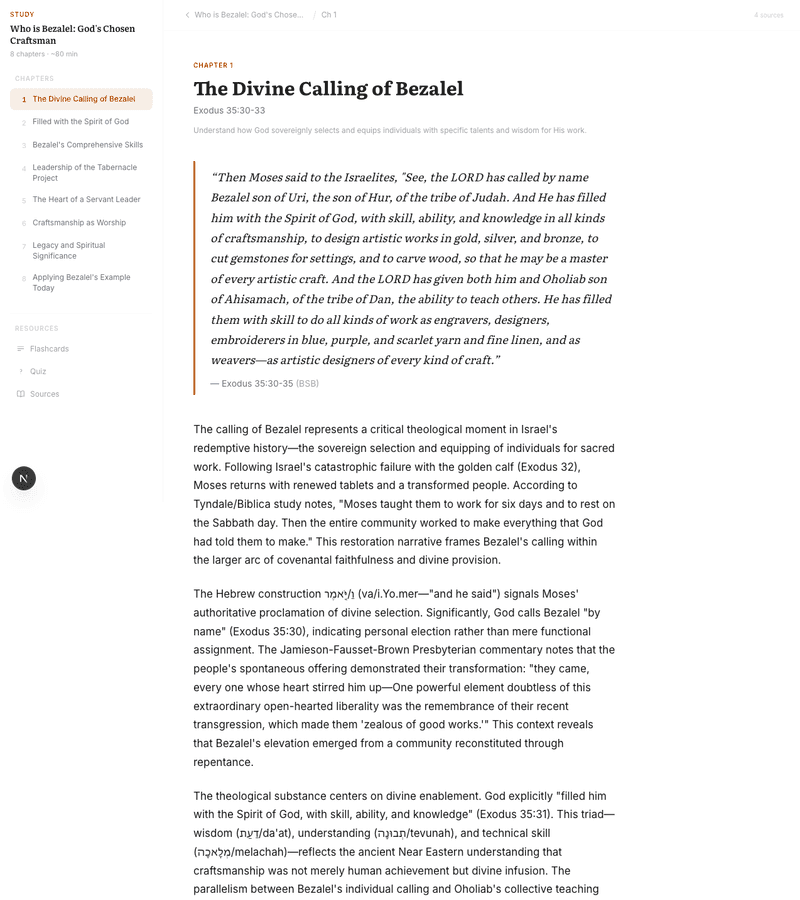
OpenLumin generates a structured course with 4–6 chapters in a few minutes. Each chapter follows the same evidence spine:
§01
Historical Foundationera, timeline, and context
§02
The Textpassage with key Hebrew/Greek terms
§03
Cultural WorldAncient Near East context
§04
What the Evidence Showscited claims from named sources
§05
Scholarly Witnessdirect insights from scholars
§06
Discovery Questionsguided Socratic questions
§07
Connected Passagescross-references
§08
Takeawaysapplication and challenge
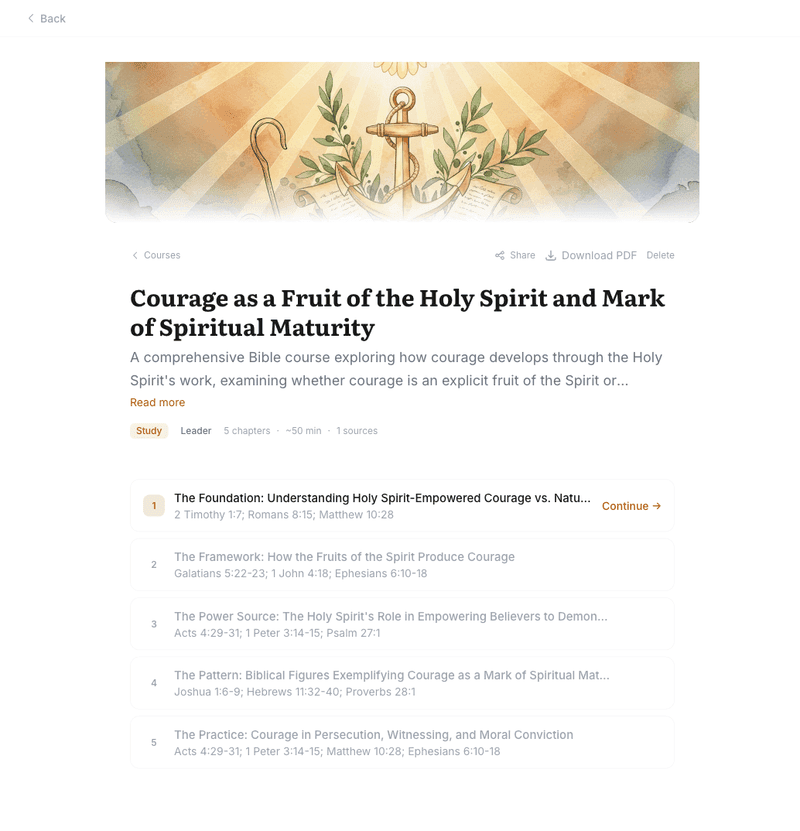
Course detail — cover, chapters, progress
Lesson — foundation, text, scholars, questions
05

Understanding citations

Every claim in every lesson is labeled so you always see the lineage.

verified
Traced to a specific scholar, a specific published work, and a date. This is evidence from the research dossier — not AI opinion.
training-assisted
The AI helped synthesize this insight from its training data. A published source is cited so you can verify it yourself.
06

PDF download

Any completed course can be downloaded as a PDF. Go to the course page and click Download PDF. The PDF includes the cover image, table of contents, all chapters with full scholarly citations, and takeaways. Hebrew and Greek characters render correctly. Use it for offline study, small-group handouts, or sermon preparation.

07

Notes

Notes are your personal study workspace — open Notesfrom the sidebar (desktop) or bottom tabs (mobile). Create notes, pin favorites, and archive what you don't need on the list. The editor supports rich text and @mentionsthat link passages, courses, lessons, and ask threads so your notes stay connected to what you're studying.

Save from Ask
On AskLumin, signed-in users can save each assistant reply into a note — new or existing — from the controls below the answer.
Clip to note
While signed in, Clip to note appears on course and lesson pages. Send a passage block — evidence, scholar quotes, discovery questions, takeaways — into a note. Choose + New Note or a recent note; the clip includes context so you can trace it back.

In any open note, use Download PDF in the header (download icon) to export the note for printing or archiving.

08

Bible coverage heatmap

Your dashboard shows a heatmap of all 66 books of the Bible. As you complete courses and advance through chapters, the books you've studied light up. It's a visual way to see which parts of Scripture you've explored — and which ones you haven't yet.

LESSMORE
09

Settings

Customize your experience in Settings:
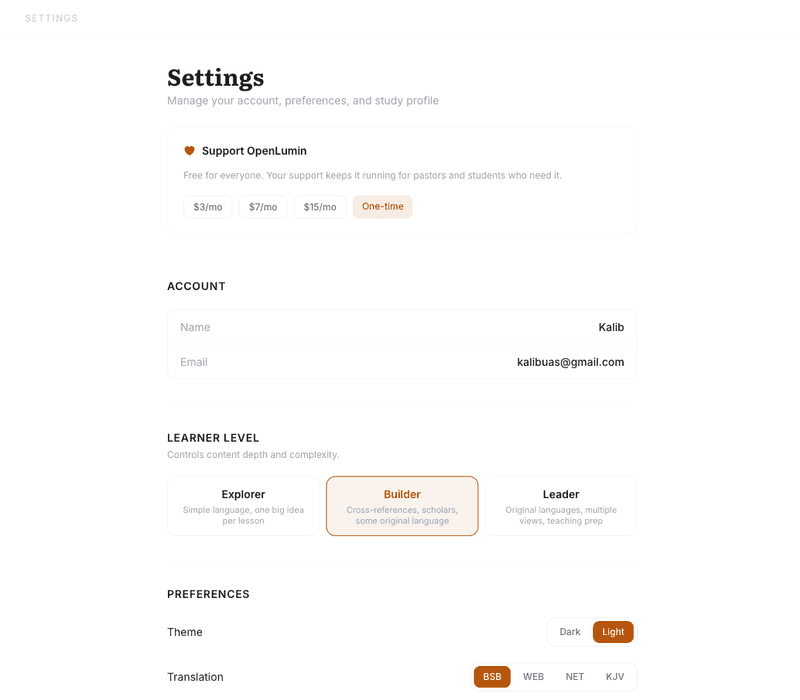
Learner LevelExplorer, Builder, or Leader
ThemeLight or Dark mode
Bible TranslationBSB (default), WEB, NET, KJV
DenominationGuides content to align with your theological tradition
Statement of FaithPaste your church's core beliefs for even more precise alignment
Settings — learner level, theme, translation, denomination
10

Tips for best results

01
Be specific. "The role of the Holy Spirit in Acts 2" gives better results than "Holy Spirit." If your topic is too broad, OpenLumin will suggest refinements.
02
Set your denomination. This ensures the content respects your theological tradition instead of blending positions.
03
Try different levels. Generate the same topic at Explorer and Leader to see how depth changes. Each level produces genuinely different content.
04
Use Notes and Clip to note. Save Ask answers and clip highlights from lessons so your study trail stays in one place.
05
Check the sources. Every claim is cited. Click through, cross-reference, disagree if you want to. That's the point — you do the thinking.
Need help?
Questions, issues, or feedback — reach out directly at kalib@openlumin.com. Built and maintained by Kalib Alibuas through AI Fluency Ministry.
Contact support